Gmail setup guide
RestockAlerts Email Setup Guide
Tell Gmail you want to hear from us. Save our email address as a Google Contact, or create a filter to keep future alerts out of Spam.
Use this email address for either method
Method 1 · Mobile + desktop
Add RestockAlerts as a Google Contact
Open Google Contacts in your browser and sign in to the Google account that receives your restock alerts. Check the account icon in the top-right corner if you use more than one account.
Save the contact in Google Contacts for that account. Saving it only in your phone's local address book or iCloud Contacts won't add it to Google Contacts.
On mobile (iPhone or Android)
Use Safari or Chrome to open Google Contacts. The screenshots below show its mobile browser layout.
- Tap the + (Add new contact) button at the bottom right.
- Choose Create a contact.
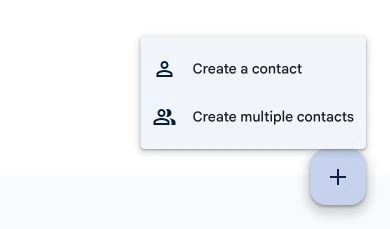
- Enter RestockAlerts in the First name field.
- Scroll to Email and enter [email protected].
- Tap Save at the top right.
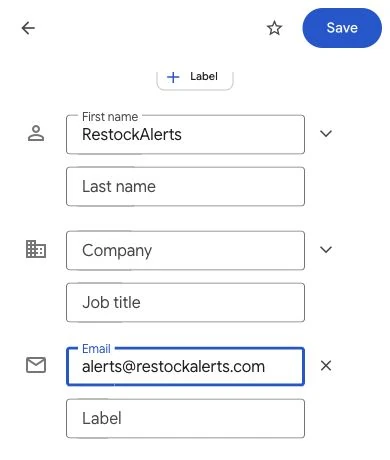
On desktop
- In Google Contacts, click Create contact at the top left.
- Choose Create a contact from the menu.
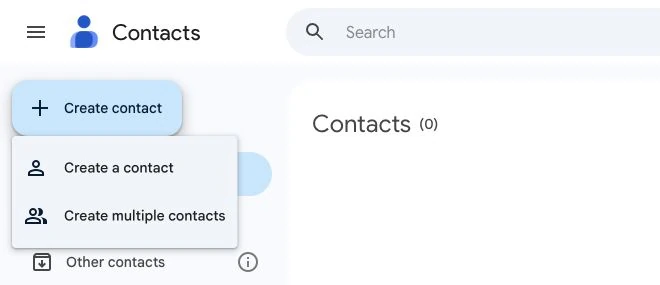
- Enter RestockAlerts in First name.
- Enter [email protected] in Email. You can leave the other fields empty.
- Click Save at the top right of the form.
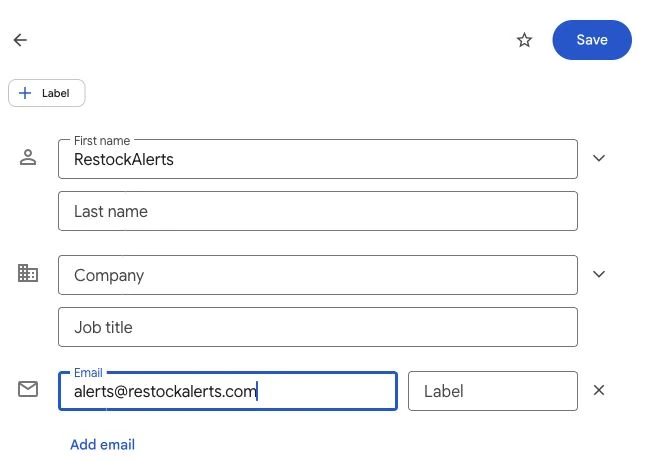
After saving, check that RestockAlerts appears in your Google Contacts with the correct email address.
Method 2 · Desktop setup only
Create a “Never send it to Spam” filter
On a computer, open Gmail for the account that receives your alerts.
You can't create this filter in the Gmail mobile app. Once you create it on desktop, it works for your account, including when you read Gmail on your phone.
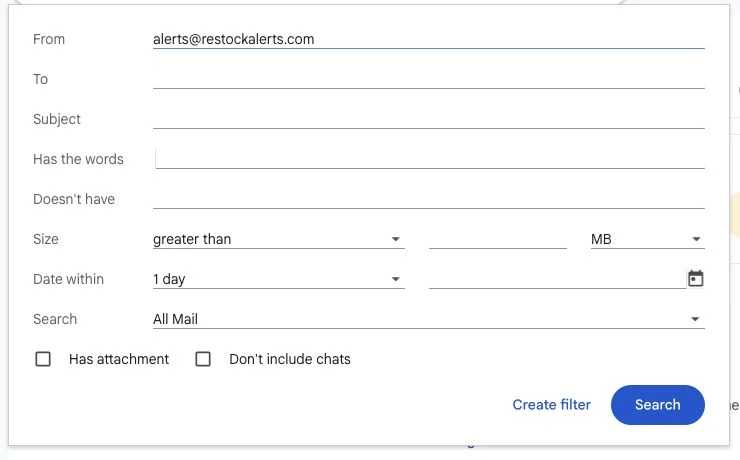
- Click Show search options (the sliders icon) at the right end of Gmail's search bar.

- In From, enter [email protected]. Leave the other search fields unchanged.
- Click Create filter at the bottom of the search panel.
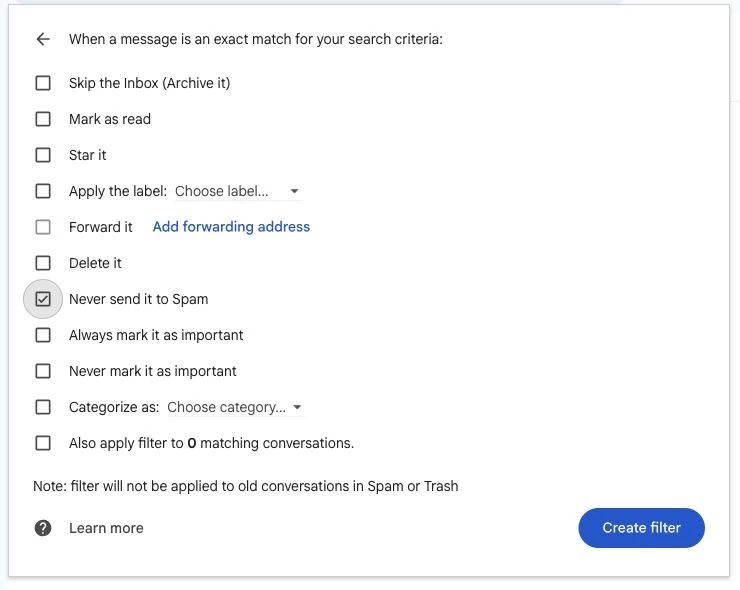
- Check Never send it to Spam. Leave the other actions unchecked.
- Click the blue Create filter button to save your rule.
To check your saved rule later, go to Settings → See all settings → Filters and Blocked Addresses.
Already have an alert in Spam?
A new filter doesn't move old messages out of Spam. In the Gmail iPhone app, open Menu → Spam, press and hold our email, then choose More (⋯) → Report not spam. On desktop, open the email in Spam and click Report not spam.
If an alert is still missing, check that you're using the right email account, look for blocked senders or rules that delete messages, and review your tracked products in My Alerts.
Contact supportThese steps help reduce spam filtering; they cannot guarantee delivery or timing. Screenshots show Google Contacts and Gmail in a browser. Menus may vary. Last checked October 16, 2026.